






This is a part of our series of features on the basics of 3D art and animation. You might want to see the previous pieces on 3D art workflows, what a 3D object is made of, how to smooth or harden 3D models and the importance of pivots and centre points.
how to make things move in a 3D scene.
If you need the tools to get started, see our guides to the best 3D modelling software.
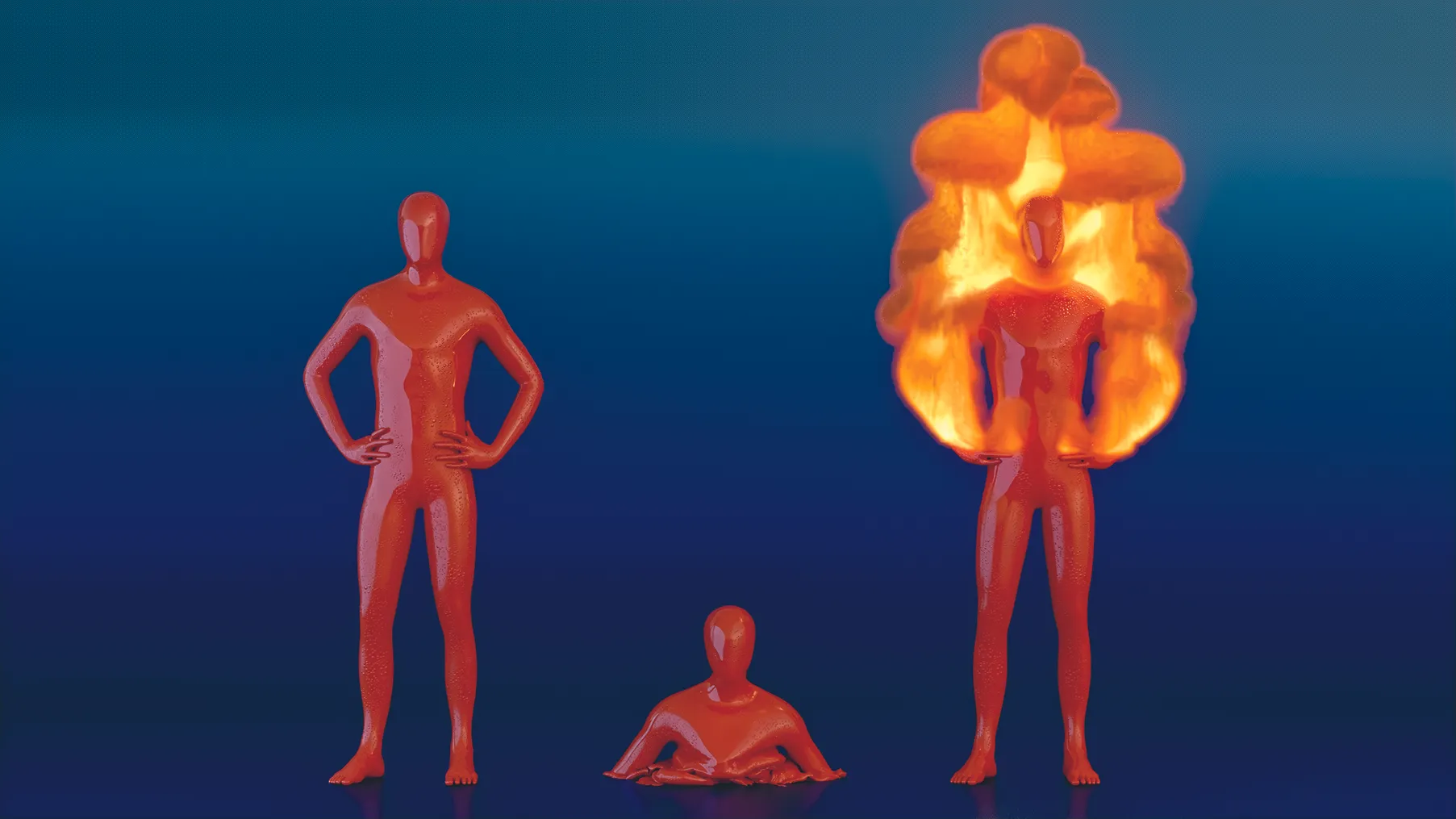
Animating a single metal ball bouncing down a staircase is a relatively simple animation which can be done by keyframing. Animating 100 metal balls down a staircase is anything but relatively simple. Animating a window opening, again simple to keyframe; animating the curtains of the window blowing in the breeze, potentially complicated.
This is what simulations are for, and it’s the same when animating liquid, or fire and smoke. Many 3D applications offer the ability to create at least hard (the bouncing metal balls) or soft body simulations (the curtains blowing in the wind), while some offer a full simulation suite which will include particle and fluid simulations.
The trade-off is control. A hand keyed animation does allow the artist to have full control of every single aspect of the animation and finesse a move, artistically, every time. A simulation does what the physics decides (which admittedly the artist has control of), but this can mean an iterative workflow of experiments of allowing the simulation to calculate the moves, the artist to review, and then go again.
Most 3D applications let you ‘bake’ a simulation once you’re happy, freezing the result into ordinary keyframes you can still tweak and play back more easily, but the physics would have gone. Understanding what can be done with a simulation and how it can make one’s life as an artist easier, whilst at the same time exploding your animation potential, is one of the many superpowers of a 3D artist.
01. Colliding solid objects
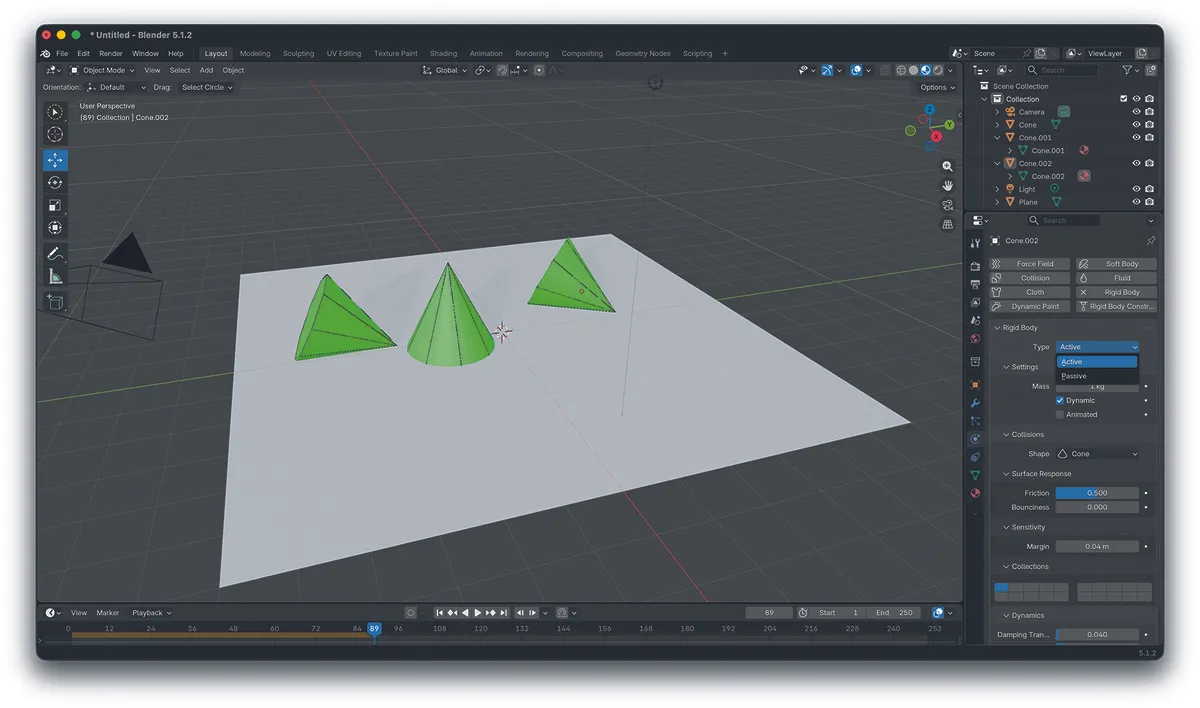
In Blender, to create simple rigid body simulations in the Physics tab, add a Rigid Body set to Active for the object you wish to react to: wind or gravity.
If you want an object to be nothing but a reactive surface, set the Rigid Body to Passive. Then press Play to create the simulation
02. Flexing soft bodies/cloth
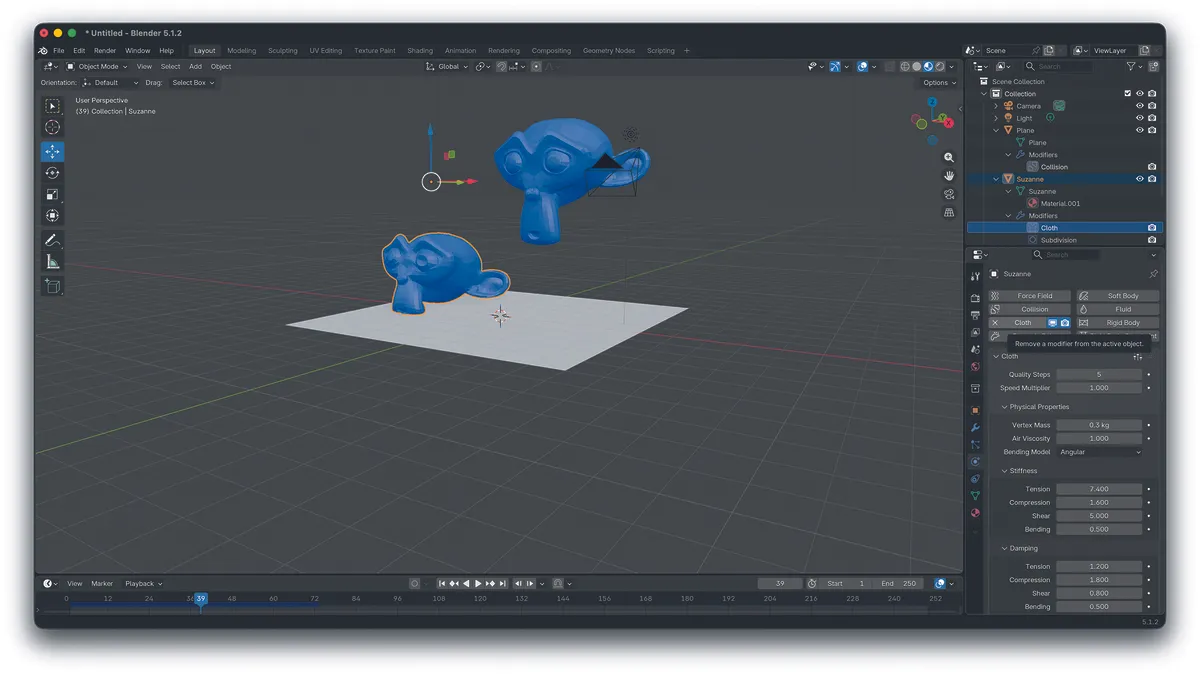
In Blender, to make an object a soft body, there are options, of which the Cloth modifier is the easiest to apply.
Make sure that any rigid bodies that you wish the cloth body to react to have the Collider modifier applied as well as the Rigid Body modifier. Again, press Play to create the simulation.
03. Fire and water
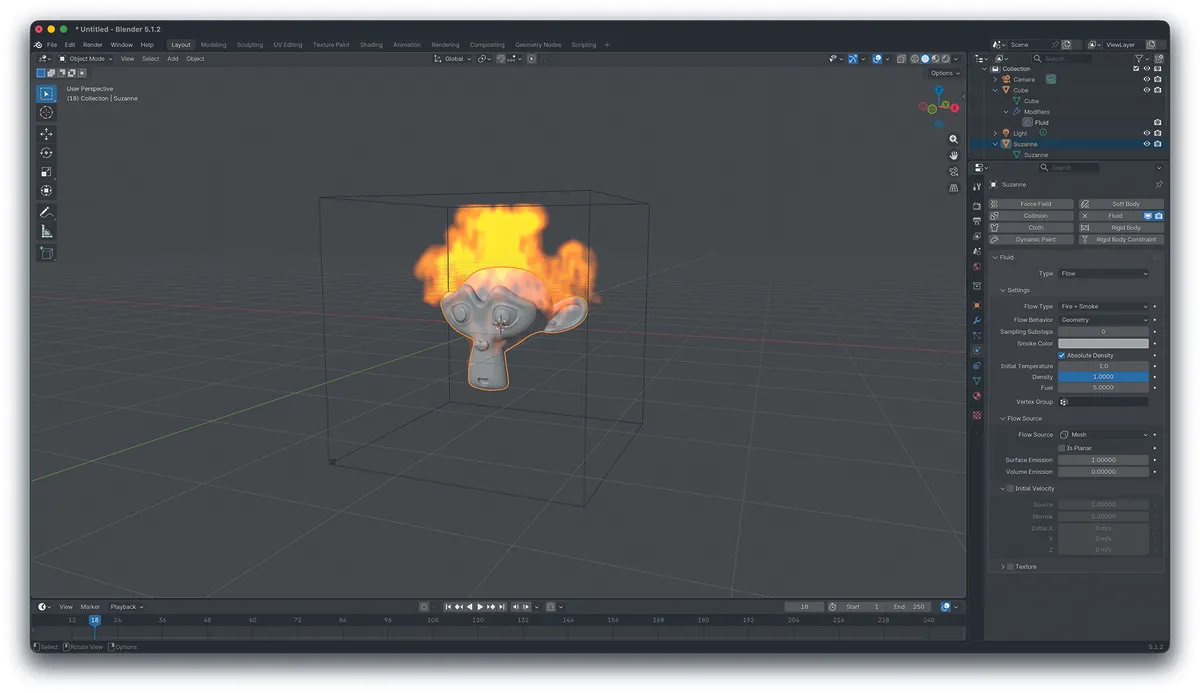
Fluid simulations are used to create water, and also fire and smoke. Usually these work differently to other simulations, in that a ‘volume’ needs to be created that marks the boundaries.
In Blender, even for fire, use the Fluid modifier in Physics to make objects part of these kinds of simulations
Gear up
If you need to build your own art setup, see our guides to the best drawing tablets and the best laptops for 3D modelling.
This article originally appeared in ImagineFX. Subscribe to ImagineFX to never miss an issue. Print and digital subscriptions are available.
Creative Bloq is now easier to access than ever before with our on-the-go app, which brings you all the content you know and love from our website, but in a super-streamlined design.
Download the Creative Bloq app for iOS
Download the Creative Bloq app for Android

